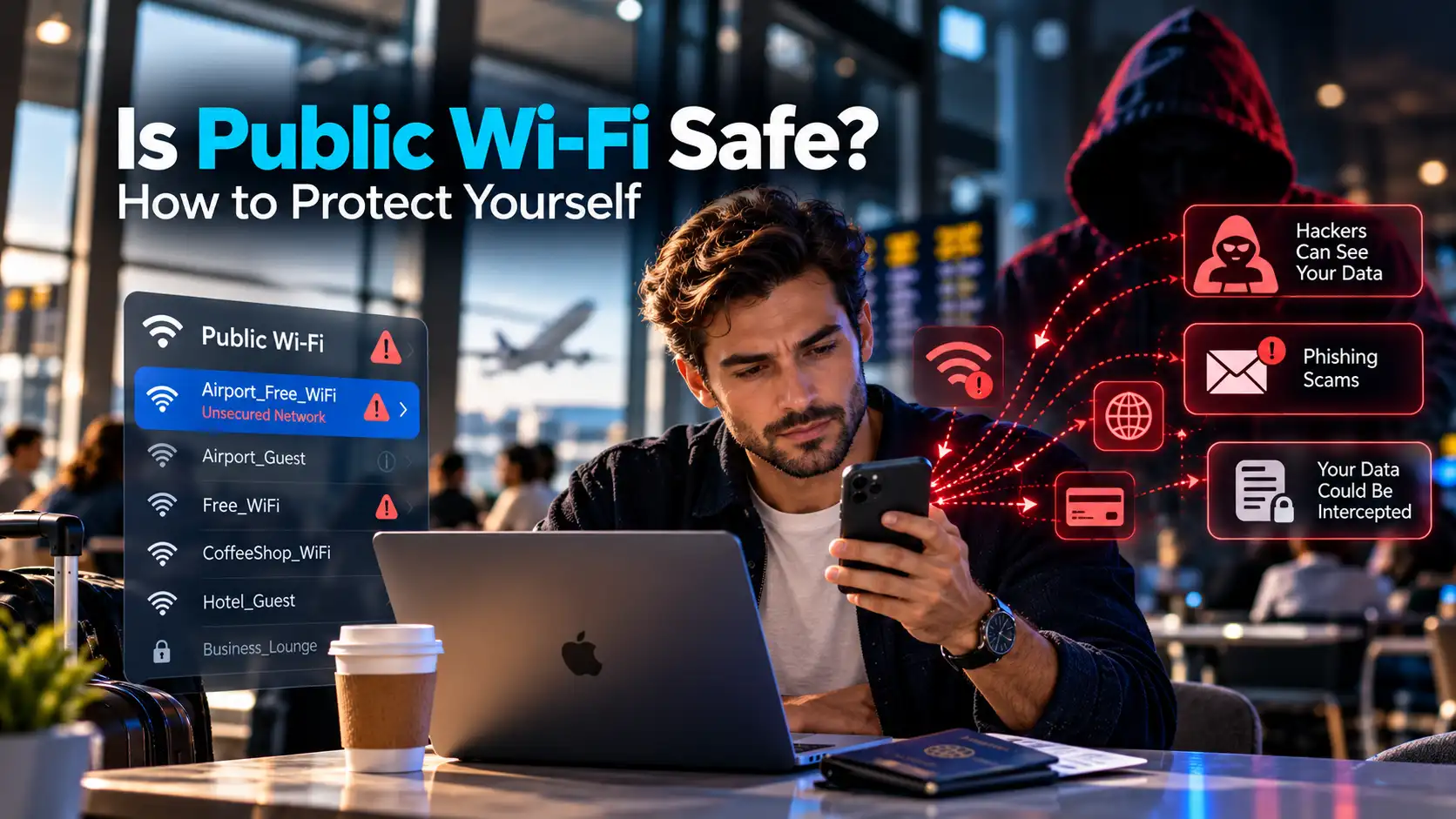
Free Wi-Fi is everywhere. You can connect at airports, hotels, coffee shops, shopping malls, and even on public transportation. It's convenient, saves mobile data, and makes it easier to stay connected when you're away from home.
But is public Wi-Fi actually safe?
The short answer is that public Wi-Fi can be reasonably safe for everyday browsing, especially when websites and apps use modern encryption. However, public networks can still expose you to privacy risks, fake hotspots, phishing attempts, and other security threats.
The good news is that you don't need to avoid public Wi-Fi completely. A few practical security habits can significantly reduce your risk.
In this guide, you'll learn how public Wi-Fi works, what makes certain networks risky, how HTTPS and VPNs protect your connection, and what you should do before connecting to an unfamiliar network.
What Is Public Wi-Fi?
Public Wi-Fi is a wireless internet connection made available to visitors, customers, or members of the public.
You'll commonly find it in places such as:
Airports and train stations
Hotels and vacation rentals
Coffee shops and restaurants
Shopping centers
Libraries and universities
Conference venues
Public transportation
Some public Wi-Fi networks are completely open, meaning you can join without entering a password.
Others require a shared password or ask you to accept terms on a login page, commonly called a captive portal.
The main difference between public Wi-Fi and your home network is control.
At home, you can usually manage the router, wireless security settings, and devices allowed to connect.
On public Wi-Fi, you generally don't know how the network is configured, who manages it, or what security protections are in place.
That uncertainty is one reason to be more careful when connecting.
Is Public Wi-Fi Safe to Use?
Public Wi-Fi is not automatically dangerous.
Modern browsers and many applications use encryption to protect information traveling between your device and online services.
For example, when you visit a legitimate banking website using HTTPS, the contents of your connection are encrypted. Someone on the same public Wi-Fi network should not be able to read your banking password simply by observing properly protected HTTPS traffic.
This is an important improvement compared with the early days of public Wi-Fi, when unencrypted websites were much more common.
However, HTTPS does not eliminate every risk.
A network may still be operated by someone you don't trust. Attackers may create convincing fake hotspots, distribute phishing links, or target devices with insecure settings.
Public Wi-Fi security depends on several factors: the network itself, the security of your device, the applications you use, and the precautions you take.
Why Can Public Wi-Fi Be Risky?
Public Wi-Fi networks are designed to make internet access convenient.
Unfortunately, some of the features that make them easy to use can also create security challenges.
For example, a network that accepts connections from anyone may include devices you don't recognize or trust.
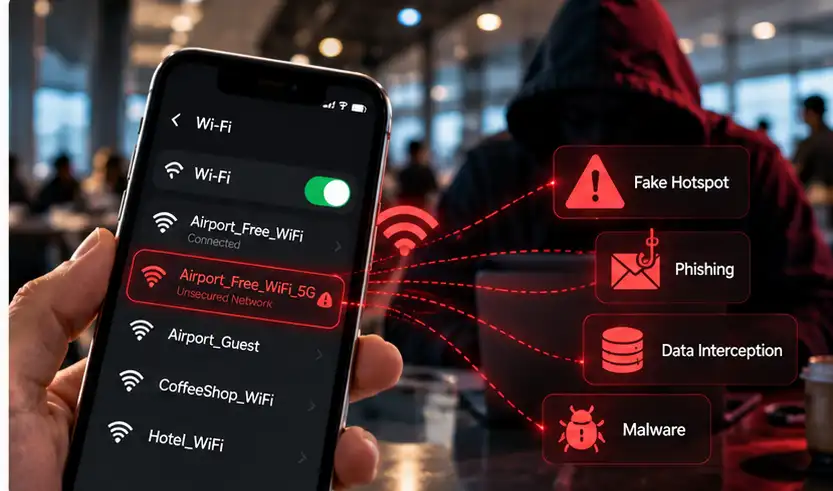
An attacker may also create a separate hotspot that looks almost identical to a legitimate one.
These situations can lead to several types of threats.
The Main Security Risks of Public Wi-Fi
1. Fake Wi-Fi Hotspots and Evil Twin Attacks
Imagine you're waiting for a flight and see two networks:
Airport_Guest_WiFi
Airport_Free_WiFi
Which one is legitimate?
An attacker can create a hotspot with a name that resembles an official network. This is commonly called an evil twin attack.
If you connect to the fake hotspot, the attacker may control the network through which your traffic passes.
They might attempt to redirect you to a fraudulent login page, observe available connection information, or interfere with traffic that lacks proper encryption.
However, connecting to a fake hotspot does not automatically mean an attacker can read the contents of correctly secured HTTPS connections.
How to reduce the risk: Confirm the official Wi-Fi network name with an employee or another trusted source before connecting.
2. Interception of Unencrypted Traffic
When information travels over a network without appropriate encryption, someone with sufficient network access may be able to inspect it.
This activity is sometimes called packet sniffing.
Modern HTTPS connections greatly reduce the risk of exposing website content and login credentials in this way.
However, older websites, improperly configured applications, or services that send information without encryption may still expose sensitive data.
How to reduce the risk: Use HTTPS websites, keep your applications updated, and consider a trusted VPN for an additional layer of network privacy.
3. Man-in-the-Middle Attacks
A man-in-the-middle (MITM) attack occurs when someone positions themselves between two communicating parties to observe or manipulate their traffic.
On an untrusted network, an attacker may attempt to interfere with connections, redirect users, or exploit applications that don't verify secure connections properly.
Properly implemented HTTPS helps defend against these attacks by encrypting traffic and authenticating the website you're connecting to.
A VPN can provide additional protection by encrypting traffic between your device and the VPN server.
How to reduce the risk: Never ignore certificate warnings, avoid unsecured websites, and use updated applications with properly configured encryption.
4. Phishing and Fake Login Pages
Some Wi-Fi networks require you to open a page before accessing the internet.
Legitimate captive portals may ask you to accept terms, enter a room number, or provide other information required by the venue.
Attackers can imitate these pages.
A fake portal might request your email password, payment details, or other sensitive information under the pretense of providing internet access.
HTTPS and VPNs cannot protect you if you voluntarily enter your credentials into a fraudulent website.
How to reduce the risk: Check that the portal belongs to the venue and be suspicious of unexpected requests for account passwords or financial information.
5. Exposure of Devices on Shared Networks
Public Wi-Fi is not only about websites.
Depending on the network configuration, other connected devices may be able to discover or communicate with services running on your laptop or phone.
This can be a problem if your device has unnecessary file-sharing features enabled or exposes vulnerable network services.
Some public networks isolate connected devices from one another, but you should not assume that every hotspot provides this protection.
How to reduce the risk: Use your device's public network profile, keep its firewall enabled, and turn off file sharing when you don't need it.
6. Network Monitoring and Privacy Risks
Even when HTTPS protects the contents of your browsing, a network operator may still observe some connection information.
Depending on your device and network configuration, that information can include:
When your device connects
How long your connection lasts
How much data you transfer
Your device's local network information
Certain destination or DNS information when it isn't otherwise encrypted
A properly functioning VPN can reduce the destination information visible to the local network by routing supported traffic through an encrypted tunnel.
However, the network can still observe that you are communicating with a VPN server, along with connection timing and traffic volume.
Does a Password Make Public Wi-Fi Safe?
A password-protected Wi-Fi network can offer better wireless link protection than a completely open hotspot.
However, a Wi-Fi password is not the same as end-to-end encryption.
In a café or hotel, many strangers may have access to the same password.
You also don't necessarily know how the router is configured or whether the network operator can be trusted.
A password should therefore be considered one security measure, not proof that a network is completely safe.
The strongest approach is to combine appropriate Wi-Fi security with HTTPS, updated software, and sensible browsing habits.
How to Protect Yourself on Public Wi-Fi: 10 Practical Tips
You don't need advanced cybersecurity knowledge to use public Wi-Fi more safely.
These ten precautions address many common risks.
1. Verify the Network Before Connecting
Always check the network name.
If you're in a hotel, café, or airport, ask an employee which Wi-Fi network is official.
Don't assume that the network with the strongest signal or the most convincing name is legitimate.
Be particularly cautious when several networks have nearly identical names.
2. Use HTTPS Websites
HTTPS encrypts the information exchanged between your browser and the website.
This helps protect passwords, messages, and other information transmitted over the connection.
Before entering sensitive information, check that the website address begins with https:// and that your browser does not display a security warning.
Remember that HTTPS confirms a protected connection to a particular website. It does not guarantee that the website itself is trustworthy.
Fraudulent websites can also use HTTPS.
3. Use a Trusted VPN for Additional Privacy
A VPN creates an encrypted tunnel between your device and a VPN server.
When the VPN is working correctly, the public Wi-Fi network cannot easily inspect traffic carried inside that tunnel.
This adds privacy protection beyond relying only on individual website connections.
It is especially useful when you don't trust the network operator or want to reduce the destination information exposed to the local network.
However, a VPN does not replace HTTPS, antivirus protection, or careful browsing.
4. Disable Automatic Connections to Unfamiliar Networks
Many devices can automatically reconnect to Wi-Fi networks they've used before.
This is convenient at home but may be undesirable on public networks.
An attacker could potentially create a network with the same name as a previously trusted hotspot.
Review your Wi-Fi settings and disable automatic joining for unfamiliar or unnecessary networks.
5. Keep Your Device and Applications Updated
Software updates often include security fixes.
Outdated operating systems, browsers, and applications may contain vulnerabilities that attackers can exploit.
Enable automatic updates where practical and install important security patches regularly.
This protects your device on public Wi-Fi and other networks.
6. Turn Off Unnecessary File Sharing
File sharing, device discovery, and other local network services can be useful on trusted networks.
On public Wi-Fi, these services may expose unnecessary functionality to nearby devices.
Use your operating system's public network settings and disable sharing features that you don't need.
Keep your firewall enabled.
7. Use Strong Passwords and Multi-Factor Authentication
A VPN cannot prevent every account compromise.
If you enter your password into a phishing page, an attacker may still obtain it.
Use unique passwords for important accounts and enable multi-factor authentication (MFA) whenever possible.
A password manager can help you avoid password reuse and may also make suspicious website addresses easier to notice.
8. Be Careful with Sensitive Activities
Using a legitimate HTTPS banking website on public Wi-Fi is not inherently unsafe.
Nevertheless, financial transactions and access to confidential work information deserve extra attention.
If the network appears suspicious, your browser displays certificate warnings, or you're uncertain about a login page, postpone the activity.
Using your own cellular connection or personal hotspot may be a better option when you need greater confidence in the network you're using.
9. Avoid Suspicious Downloads and Pop-Ups
Attackers sometimes use fake warnings, unexpected downloads, or misleading links to trick users into installing software.
A VPN does not automatically make downloaded files safe.
Avoid installing applications from unfamiliar sources and do not follow unexpected instructions claiming that your device requires an urgent security update.
10. Forget the Network After You Finish
When you no longer need a public Wi-Fi connection, consider removing it from your device's saved networks.
This helps prevent automatic reconnection later.
It's a simple habit that reduces unnecessary exposure to networks you don't control.
Public Wi-Fi Safety Checklist
Use this quick checklist before starting a session on an unfamiliar network.
Security check | What to do |
|---|---|
Network identity | Verify the official Wi-Fi name |
Website security | Use HTTPS and respect browser warnings |
VPN protection | Connect to a trusted VPN if you want additional network privacy |
Auto-connect | Disable automatic joining for unfamiliar networks |
Device security | Keep your firewall and software updated |
File sharing | Disable unnecessary sharing and discovery |
Account protection | Use unique passwords and MFA |
Sensitive activity | Prefer a trusted connection if the network seems suspicious |
Downloads | Avoid unexpected files and software prompts |
After use | Disconnect and forget the network if appropriate |
These precautions are useful whether you're using public Wi-Fi on a laptop, smartphone, or tablet.
How Does a VPN Protect You on Public Wi-Fi?
A VPN provides an additional encrypted connection between your device and a VPN server.
Without a VPN, your device connects to websites and services through the public network. HTTPS may already encrypt the content of those connections, but the network can still observe some connection information.
With a properly functioning VPN, supported traffic is routed through an encrypted tunnel before reaching the VPN server.
This helps protect traffic from observation by the public Wi-Fi operator and other parties who might have access to that network.
What Changes When You Turn On a VPN?
Privacy consideration | Without a VPN | With a VPN |
|---|---|---|
HTTPS website content | Encrypted by HTTPS | Still encrypted by HTTPS |
Traffic inside the VPN tunnel | No VPN tunnel | Protected between device and VPN server |
Destination visibility to local network | Some destination information may be visible | Generally reduced for tunneled traffic |
Public IP seen by websites | Usually your network's public IP | Usually the VPN server's public IP |
Network connection metadata | Visible to network operator | Some metadata remains visible |
Protection against phishing | Not guaranteed | Not guaranteed |
Protection against malware | Not guaranteed | Not guaranteed |
A VPN changes what the local network can observe, but it does not eliminate all online security risks.
It also changes whom you trust with some connection information. Your VPN provider may be able to observe certain metadata about traffic routed through its service.
That makes choosing a trustworthy provider important.
Is HTTPS Enough on Public Wi-Fi, or Do You Need a VPN?
HTTPS and VPNs protect different parts of your connection.
HTTPS secures communication between your device and a website or online service using it.
A VPN secures traffic between your device and the VPN server.
For ordinary browsing on properly secured HTTPS websites, HTTPS already provides important protection against local interception.
A VPN can add value when you want to reduce the information visible to the local network or protect traffic that might otherwise travel outside an encrypted tunnel.
These protections complement each other rather than replace each other.
The important point is that you don't need to assume every public Wi-Fi session is dangerous without a VPN.
Instead, understand what protection you already have and when an additional layer makes sense.
How to Use SyncVPN on Public Wi-Fi
SyncVPN can help add VPN tunnel protection when you're connected to an unfamiliar wireless network.
The general process is straightforward.
Step 1: Confirm the Wi-Fi Network Is Legitimate
Before connecting, verify the official network name.
Avoid connecting to suspicious networks with unexpected names or login requirements.
Step 2: Complete Any Required Wi-Fi Login
Some public hotspots display a captive portal where you must accept terms or authenticate before internet access is available.
Complete the legitimate network's connection process first.
Avoid entering unrelated account passwords or sensitive information into unexpected pages.
Step 3: Open SyncVPN
Once internet access is available, launch the SyncVPN application on your device.
Make sure the application is updated.
Step 4: Connect to a VPN Server
Select an appropriate server and establish the VPN connection.
If your application provides a Smart protocol option, it can be a convenient starting point.
Wait until SyncVPN confirms that the VPN connection is established.
Step 5: Review Your Connection Settings
If your version of SyncVPN supports Kill Switch protection, review how the feature behaves when the VPN connection drops.
Kill Switch can help prevent affected traffic from switching to an unprotected route during an unexpected VPN disconnection.
Also review Split Tunneling settings if you use them.
Applications intentionally excluded from the VPN do not receive protection from that VPN tunnel.
Step 6: Browse with Normal Security Precautions
Continue using HTTPS websites, strong authentication, and updated applications.
Remember that a VPN cannot determine whether every website or download is safe.
For detailed feature instructions, consult the relevant guides in the SyncVPN Support Center.
What If Your VPN Doesn't Work on Public Wi-Fi?
Public networks sometimes use login pages, firewall rules, or connection restrictions that interfere with VPN traffic.
If SyncVPN doesn't connect, try the following steps.
Check your internet connection. Confirm that the public Wi-Fi is working before attempting to connect to the VPN.
Complete the captive portal. Open the legitimate network login page and finish any required authentication.
Reconnect to the VPN. Once internet access is available, try establishing a new VPN connection.
Try another server. A different server may work better under your current network conditions.
Review the protocol settings. If UDP-based connections are restricted, OpenVPN TCP may be worth testing where supported.
Check your device's security settings. Firewall rules or other network configurations may affect connectivity.
Use another network if necessary. If the public Wi-Fi continues to interfere with the VPN and privacy is important, consider your own mobile data connection.
A VPN protocol change is not guaranteed to overcome network restrictions.
If you cannot establish the protection you need, avoid sensitive activities on a network you don't trust.
Is Hotel Wi-Fi Safe?
Hotel Wi-Fi can be convenient, but you should not automatically treat it as a private or trusted network.
Some hotels operate open guest networks, while others require room-specific credentials or shared passwords.
Even if the network belongs to the hotel, its configuration and security practices may vary.
Verify the official network name, use HTTPS, and consider VPN protection when you want additional privacy.
If your hotel displays a login portal, check that the page is legitimate before entering information.
Is Airport Wi-Fi Safe?
Airport Wi-Fi is generally useful for routine internet access, especially when websites and applications use modern encryption.
However, busy public spaces can make it difficult to distinguish official hotspots from networks with similar names.
Confirm the airport's official network information through signage or staff rather than guessing.
Avoid unfamiliar login pages and keep automatic Wi-Fi joining under control.
For additional privacy, connect to a trusted VPN after establishing internet access.
Is Coffee Shop Wi-Fi Safe?
Coffee shop Wi-Fi presents many of the same considerations as other shared networks.
A café may offer a guest network with a publicly displayed password, allowing many customers to connect.
That does not necessarily mean the network is malicious, but it also does not guarantee that every connected device is trustworthy.
Use HTTPS, keep your device's firewall enabled, and disable unnecessary sharing.
If you work regularly from cafés, using a VPN and reviewing your device's network security settings can be helpful habits.
Public Wi-Fi vs. Mobile Data: Which Is Safer?
Your own cellular connection typically gives you more control over which network you're using than an unfamiliar public hotspot.
A personal hotspot also allows you to choose a Wi-Fi password and manage which devices can join.
This can make mobile data or a properly secured personal hotspot a preferable option when you want to avoid the risks associated with an unknown shared Wi-Fi network.
However, cellular connections are not immune to tracking, phishing, malware, or other online threats.
You should continue using HTTPS and normal account security precautions on every connection type.
What Should You Do If You Connect to a Suspicious Wi-Fi Network?
If you think you joined a fake hotspot or encountered a suspicious login page, take action based on what happened.
If You Only Connected to the Network
Disconnect from the Wi-Fi and remove it from your saved networks.
Review your device's network settings and check for unexpected configuration changes.
Simply joining a suspicious hotspot does not automatically mean your accounts have been compromised.
If You Entered a Password
If you entered a real account password into a suspicious page, change that password using a trusted connection.
Update other accounts if you reused the same password.
Enable MFA where available and review recent account activity.
If You Installed Software or a Configuration Profile
Remove unrecognized software or network profiles using appropriate device security guidance.
Update your operating system and run a reputable security scan where supported.
If the device belongs to your employer, notify your IT or security team.
If You Entered Payment Information
Contact your payment provider or financial institution using its official website or contact details.
Explain what happened and follow its fraud-prevention instructions.
Responding appropriately is more useful than assuming that every unfamiliar Wi-Fi connection results in a security incident.
Frequently Asked Questions About Public Wi-Fi Safety
Is Public Wi-Fi Safe for Banking?
Using a legitimate banking application or HTTPS website on public Wi-Fi can be reasonably secure because properly implemented encryption protects the information exchanged with the bank.
However, you should verify that you're using the correct service, avoid suspicious network portals, and use MFA.
If the network appears untrustworthy, switching to cellular data is a sensible precaution.
Can Someone See What I'm Doing on Public Wi-Fi?
A public Wi-Fi operator may be able to observe connection metadata and, depending on the configuration, some destination information.
Properly secured HTTPS generally prevents the operator from reading the contents of your website sessions.
A VPN can reduce visibility into destinations carried inside its encrypted tunnel, although some metadata remains observable.
Can Public Wi-Fi Steal Your Passwords?
Public Wi-Fi itself does not automatically steal passwords.
Attackers may attempt to capture credentials through fraudulent login pages, insecure applications, or unencrypted connections.
HTTPS, MFA, password managers, and careful website verification help reduce these risks.
Does a VPN Make Public Wi-Fi Completely Safe?
No. A VPN protects traffic between your device and the VPN server, but it does not prevent phishing, malicious downloads, or every form of device compromise.
A VPN is one part of a broader security approach.
Is Public Wi-Fi Safe Without a VPN?
It can be, particularly for ordinary browsing on properly secured HTTPS websites and applications.
However, a VPN offers additional privacy from the local network and may protect traffic that would otherwise lack VPN tunnel encryption.
The value of using one depends on your privacy needs and the network environment.
Is Password-Protected Public Wi-Fi Safer Than Open Wi-Fi?
Password-protected Wi-Fi can provide additional wireless link security, depending on the encryption standard and configuration.
However, a widely shared password does not make a public network equivalent to your private home network.
Can Hackers Access My Phone Through Public Wi-Fi?
A vulnerable device or an exposed network service may be at risk on an untrusted network.
However, simply connecting to public Wi-Fi does not mean someone can automatically access your phone.
Keeping the operating system updated and limiting unnecessary network services helps reduce exposure.
Should I Turn Off Wi-Fi When I'm Not Using It?
Turning off Wi-Fi can prevent unwanted connections when you don't need wireless access.
Alternatively, you can disable automatic connection to unfamiliar networks and remove old public hotspots from your saved network list.
Can a VPN Work on Airport or Hotel Wi-Fi?
Yes, a VPN can work on many airport and hotel networks.
Some hotspots require you to complete a login page first, while others may restrict certain VPN connections.
If a VPN cannot connect, review the network login process and try another supported server or protocol.
What Is the Safest Way to Use Free Public Wi-Fi?
Verify the network, use HTTPS, keep your software updated, avoid suspicious login pages, enable MFA, and consider a trusted VPN for additional privacy.
For highly sensitive activities, your own cellular connection may be preferable when the public network cannot be trusted.
Final Thoughts
Public Wi-Fi is a convenient part of everyday life, and it is generally safer than it used to be thanks to modern encryption.
However, connecting to an unfamiliar network still requires some caution.
Fake hotspots, phishing pages, insecure applications, and exposed device services remain potential threats.
The best approach is not to avoid public Wi-Fi entirely, but to use it with the right protections.
Verify the network before connecting, use HTTPS, keep your device updated, and be careful about where you enter sensitive information.
A trusted VPN such as SyncVPN can add another layer of privacy by encrypting traffic between your device and a VPN server, reducing what an unfamiliar network can observe.
Combined with good security habits, these precautions can help you stay connected more confidently at airports, hotels, cafés, and wherever your day takes you.