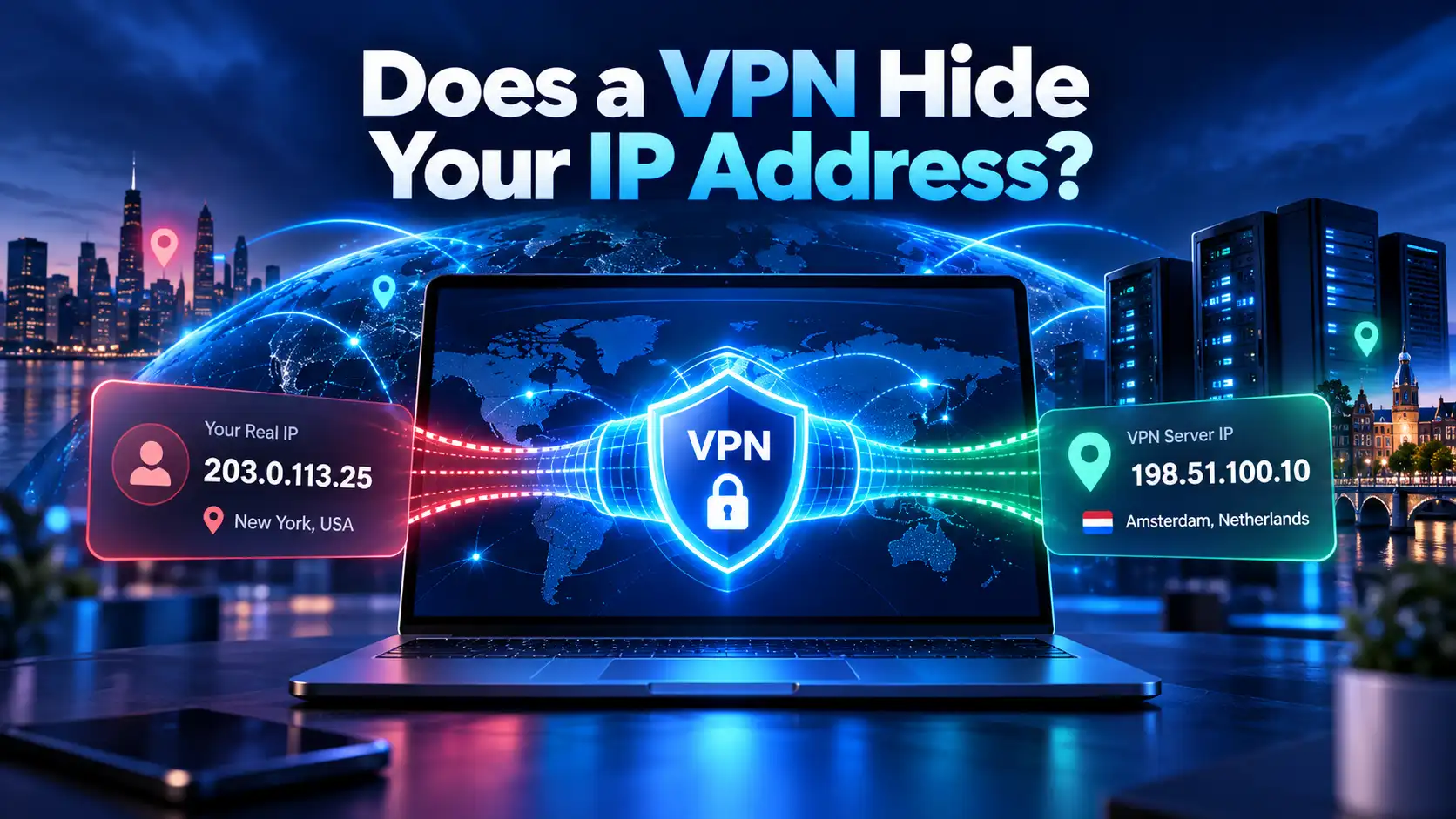
Your IP address is one of the details websites can learn when you connect to them. It helps internet services send data back to your device, but it can also reveal your internet provider and give an approximate indication of your location.
So, does a VPN hide your IP address?
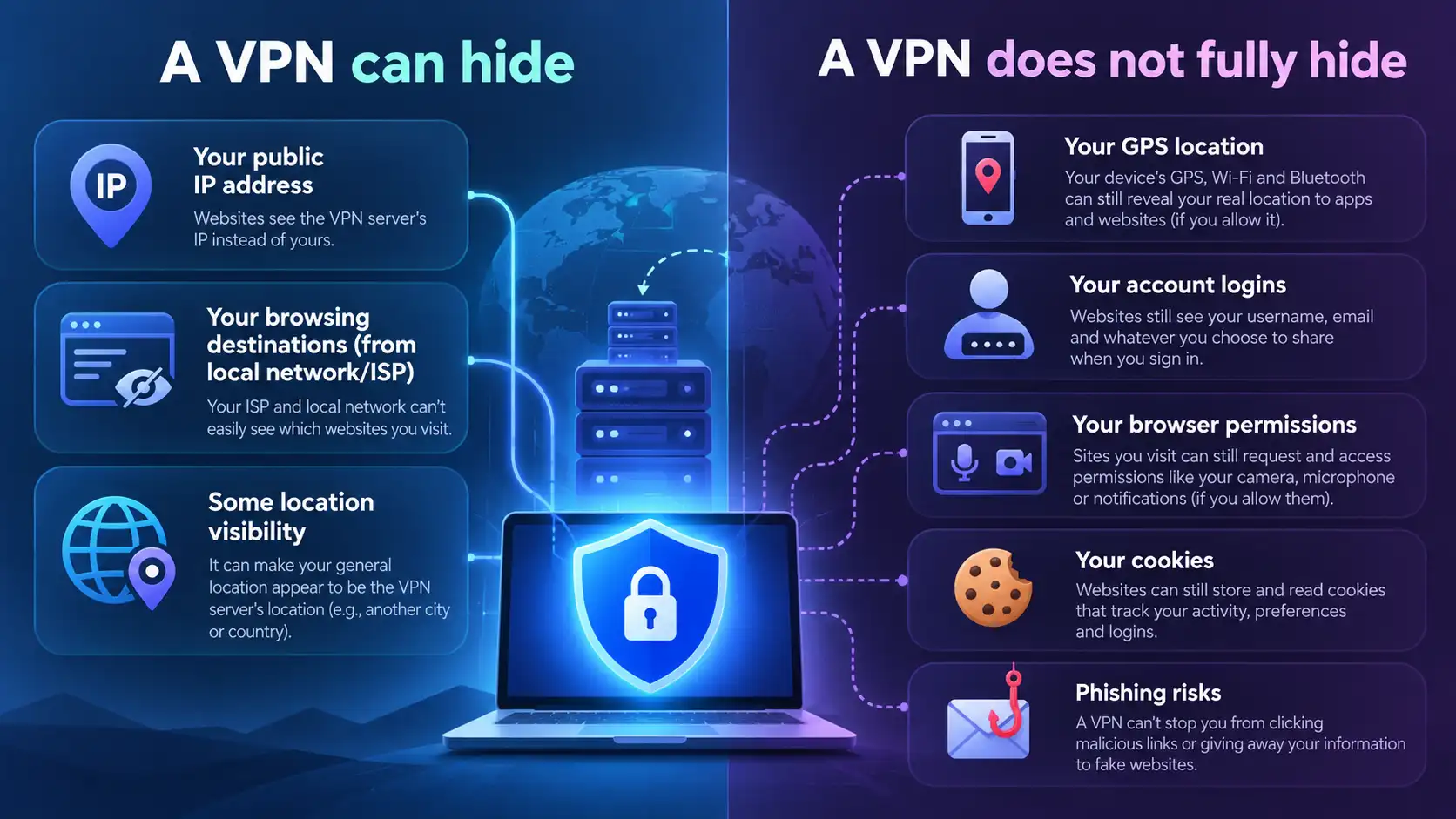
Yes. When your traffic is correctly routed through a VPN, websites generally see the VPN server's public IP address instead of the public IP address assigned to your usual internet connection. However, your original address still exists, some parties can still see it, and leaks or routing exceptions can expose it in certain situations.
This guide explains what changes when you connect, who can still see your IP, how to check for leaks, and what a VPN cannot hide.
What Is Your Public IP Address?
An Internet Protocol (IP) address helps data reach the right network endpoint. An important distinction is between public and private addresses.
Your public IP address is the internet-facing address associated with your connection. Websites can ordinarily see it when you visit them directly. Depending on your connection, that address might belong to your router, ISP infrastructure, or mobile provider.
A private IP address, such as one assigned to your laptop by your home router, is used within a local network. It is not normally the address a website sees.
Public IP addresses can be IPv4 or IPv6. Both matter when checking VPN protection.
How Does a VPN Hide Your IP Address?
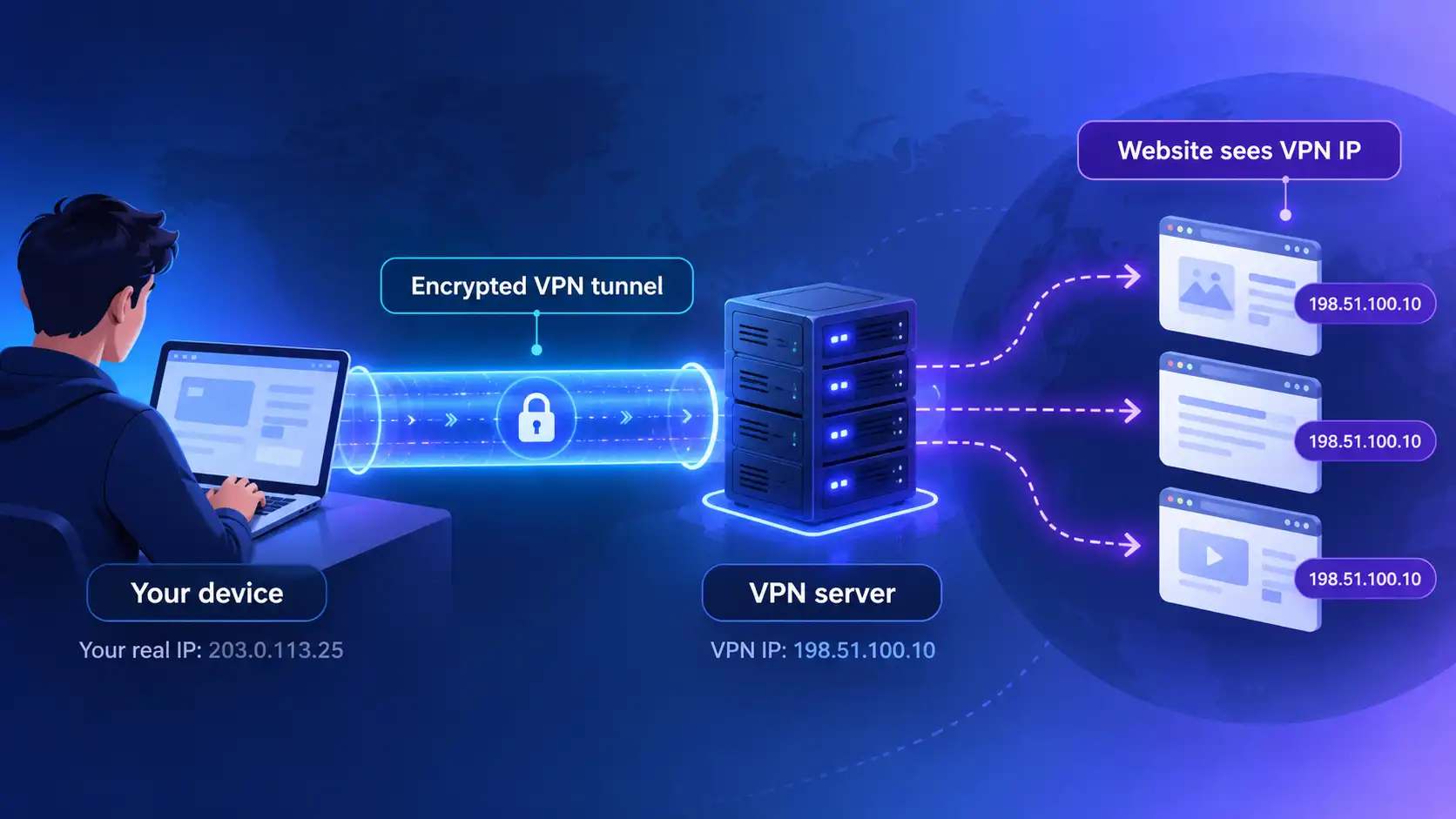
A VPN establishes an encrypted tunnel between your device and a VPN server. When an app's traffic travels through that tunnel, the server forwards its requests to websites and other internet services.
From a website's perspective, the request generally arrives from the VPN server, not directly from your usual internet connection. Its logs may therefore show the VPN server's public IP address.
Think of the journey in two parts:
Your device to the VPN server: Your ISP carries the encrypted connection and can see that you are contacting the VPN server.
The VPN server to the website: The website receives traffic associated with the VPN server's public address.
This IP masking reduces exposure of your normal public IP, but it does not make your connection invisible.
Websites can still see what you do on their services and may recognize your account, cookies, or device characteristics.
Does a VPN Hide or Change Your Real IP?
Both descriptions appear online, but they refer to different things.
A VPN usually changes the public IP address visible to websites using the tunnel. It does not necessarily change the IP address your ISP assigned to your underlying internet connection.
For example, your ISP may continue assigning the same public address to your home connection while websites see the address of a VPN server elsewhere.
Disconnecting the VPN ordinarily returns your browser to its regular network route, unless another privacy or network feature changes that behavior.
ISPs may assign dynamic addresses that change without a VPN. A changed address alone does not prove VPN protection.
Who Can Still See Your IP Address?
The answer depends on which IP address you mean and who is observing the connection.
Observer | What they generally see with a working VPN |
|---|---|
Websites you visit | The VPN server's public IP for tunneled requests |
Your ISP | Your connection's assigned address and the VPN server you contact |
Public Wi-Fi operator | Your device on its network and the connection to the VPN server |
VPN provider | The source of your connection and information needed to operate the tunnel; handling and retention depend on its design and policies |
Apps excluded from the VPN | Your regular public IP may be visible to their destinations |
Signing in can identify you despite a VPN address. Managed devices may also report activity through monitoring software.
A VPN hides an address from some observers, not from everyone involved in carrying the connection.
Does a VPN Hide Your Location?
A public IP address can be used to estimate a rough geographic location. That estimate might identify a country, region, or city, but it is not a precise GPS coordinate.
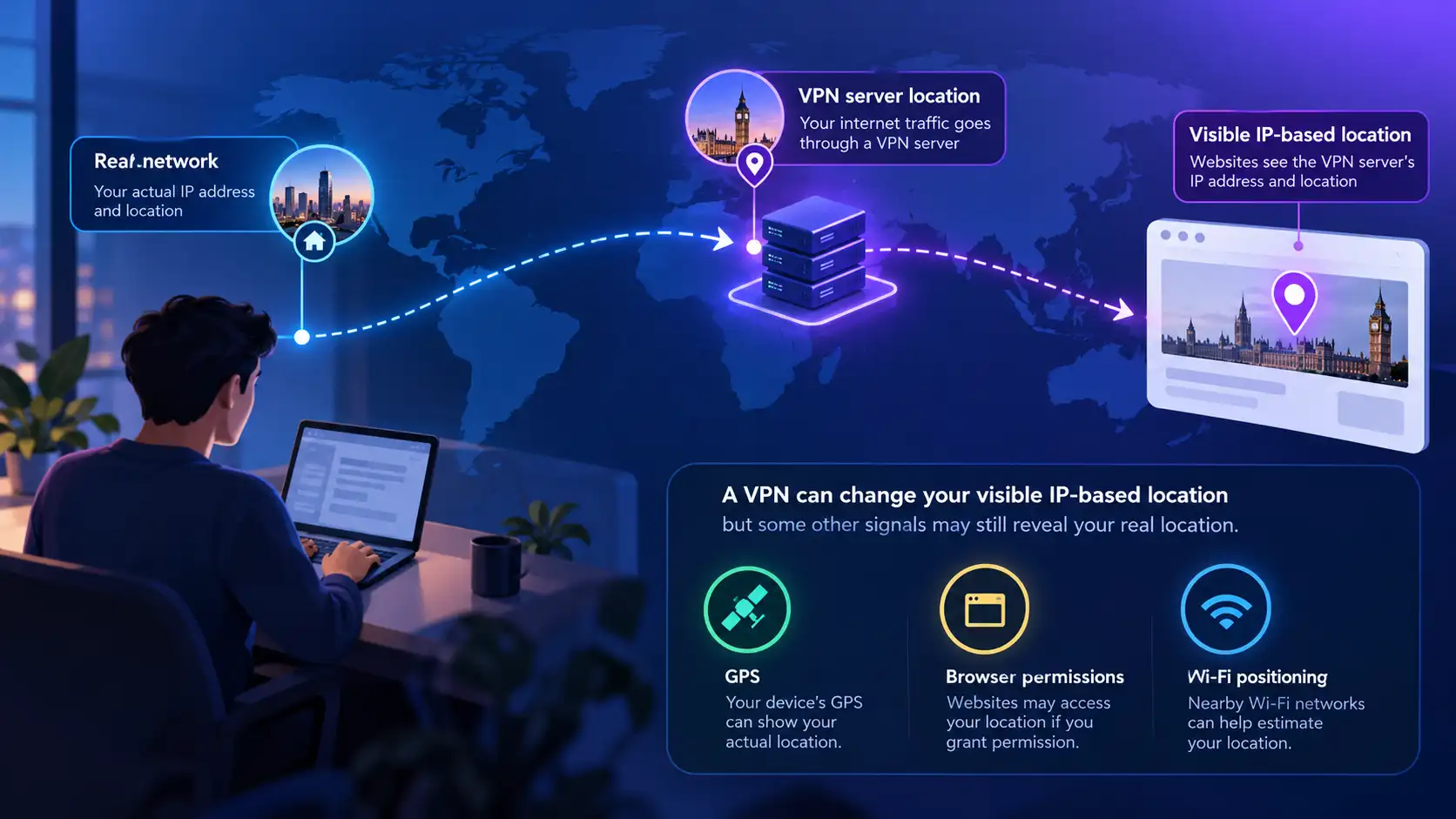
When a VPN replaces the IP address a website sees with its server's address, an IP-based lookup may place your connection near the VPN server instead of your actual location.
However, services can learn location in other ways:
GPS or device location permissions
Nearby Wi-Fi or cellular positioning
Location details saved to your account
Addresses you enter for delivery or payment
Information voluntarily included in posts or messages
A map application with location permission can still receive your real coordinates while your VPN is connected. Changing your visible IP does not automatically override those permissions.
If location privacy matters, review both your VPN connection and your app permissions.
Can Your Real IP Address Leak While Using a VPN?
It is possible for some traffic or identifying network information to escape the intended VPN route. The exact risks depend on your operating system, browser, VPN implementation, and settings.
IPv4 and IPv6 Exposure
Some networks support both IPv4 and IPv6. If a VPN protects one address family but fails to route or block the other, certain connections could reveal an address associated with your normal connection.
A well-configured VPN should handle supported traffic appropriately, but it is worth checking both IPv4 and IPv6 rather than testing only one.
WebRTC IP Exposure
WebRTC helps browsers support real-time communication. Depending on browser behavior and network configuration, WebRTC-related checks may reveal network addresses.
Not every address in a WebRTC test is a leak. A private local address or VPN server address differs from your usual public address.
DNS Leaks
DNS translates domain names into IP addresses. If DNS requests bypass the VPN, a network operator or unintended resolver may learn about requested destinations.
A DNS leak is not necessarily the same as exposing your real public IP to a website. It is a distinct routing and privacy concern that deserves its own check.
Split Tunneling and Disconnections
Split Tunneling may intentionally allow certain apps or destinations to use your regular connection. Their traffic can reveal your usual public IP even while other apps use the VPN.
An unexpected VPN disconnection can also cause traffic to return to its normal route. A properly configured Kill Switch, where supported, can help block affected traffic during an interruption, but its behavior varies across devices and settings.
How to Check If Your VPN Is Hiding Your IP
You can perform a straightforward check without advanced technical tools.
Step 1: Record Your IP Without the VPN
Disconnect your VPN and open a reputable public IP lookup website. Record the IPv4 and IPv6 addresses shown, if any. This gives you a baseline for your current network.
Step 2: Connect to a VPN Server
Open your VPN application, select a server, and wait until it confirms that the connection is established. Do not assume that clicking Connect means the tunnel is already active.
Step 3: Check Your Public IP Again
Reload the same IP lookup page. For browser traffic correctly using the VPN, the displayed public address should generally correspond to the VPN exit connection rather than your baseline address.
Check IPv4 and IPv6 where available. Some services may show no IPv6 address, which requires interpretation rather than an automatic assumption of failure.
Step 4: Check DNS and WebRTC
Use reputable DNS and WebRTC testing tools to look for unexpected network addresses or resolvers. A different DNS resolver does not automatically prove a leak; compare the result with your expected VPN configuration.
Step 5: Verify the Apps That Matter
A browser IP test checks only the browser. Split Tunneling or other applications may follow different routes.
Repeat important checks after changing networks, VPN servers, or connection settings. No single test can guarantee complete anonymity.
What to Do If Your Real IP Is Still Visible
If a test shows your usual public IP while the VPN appears connected, investigate before relying on the connection for privacy.
Confirm the VPN is connected. Check the application's actual connection status, not just the selected server.
Try another server. Reconnect and repeat the IP comparison.
Review Split Tunneling. Confirm the browser or app you are testing is not excluded from the VPN.
Check IPv6 and WebRTC results. Determine whether the unexpected address is public, private, or associated with the VPN.
Restart the app and update software. Install current versions of the VPN app, browser, and operating system.
Review security settings. Firewalls, additional VPNs, proxies, and other network tools can interfere with routing.
Contact support if the problem continues. Include your device type, operating system, VPN server, protocol, and test observations. Avoid sending sensitive credentials.
Do not disable important system security features simply to make a leak test pass.
How to Protect Your IP Address with SyncVPN
To reduce exposure of your usual public IP while using SyncVPN, first establish a VPN connection to an available server and confirm that the application reports a successful connection.
Then compare your visible IP address before and after connecting. Check which applications are actually routed through the VPN.
The SyncVPN protocol menu shown in its application includes Smart, WireGuard, OpenVPN UDP, and OpenVPN TCP. Protocol choice can affect connectivity and performance, but a protocol label alone does not guarantee protection against every routing leak.
If you use Split Tunneling, remember that excluded connections may still reveal your normal public IP. If Kill Switch is available on your device, review its supported behavior during disconnections.
For feature-specific instructions, consult the How to Use Split Tunneling with SyncVPN and How to Use Kill Switch with SyncVPN guides in the Support Center.
Does Hiding Your IP Make You Anonymous?
No. Replacing your visible public IP address is one privacy measure, not complete anonymity.
Websites can still recognize a signed-in account, remember cookies, or use browser fingerprinting. Apps may obtain location data through permissions. Information you post, purchase, or submit can identify you directly.
Your VPN provider also becomes part of the connection's trust relationship. Depending on its architecture and policies, it may handle connection metadata or other information that your ISP cannot directly inspect inside the tunnel.
Use a trustworthy provider, protect your accounts with strong authentication, keep devices updated, and review browser privacy settings. Those steps complement IP masking rather than duplicate it.
Frequently Asked Questions
Does a VPN Hide Your IP Address from Websites?
Usually, yes, for requests correctly routed through the VPN. Websites generally see the VPN server's public IP instead of your regular address. Signed-in accounts and other tracking methods can still identify you.
Can Your ISP See Your IP Address When You Use a VPN?
Yes. Your ISP operates the underlying connection and can identify the address assigned to it. It can also generally see your connection to a VPN server, though properly tunneled destinations are less visible.
Does a VPN Hide Both IPv4 and IPv6?
That depends on the VPN and configuration. A correctly configured service should appropriately route or block supported address families. Test both where available rather than assuming that an IPv4 check covers IPv6.
Can a Website Find My Real Location with a VPN?
It may. A VPN can change your IP-based location estimate, but GPS, device permissions, logged-in accounts, and information you share can still reveal your actual location.
Is a DNS Leak the Same as an IP Leak?
No. A DNS leak means name-resolution requests take an unintended route. An IP leak may expose an address associated with your normal connection. These issues can overlap, but they are not identical.
Can I Be Tracked If I Use a VPN?
Yes. Cookies, accounts, fingerprinting, and information you provide can still enable tracking. A VPN reduces exposure of your normal IP address; it does not eliminate every identifier.
Does Incognito Mode Hide My IP Address?
No. Private or incognito mode primarily limits information saved in the local browser session. It does not normally replace your public IP address or encrypt your traffic through a VPN server.
Final Thoughts
A VPN generally hides your usual public IP address from websites by routing supported traffic through a VPN server. It can also change your apparent IP-based location and reduce what a local network can observe about properly tunneled destinations.
However, the address assigned to your original connection still exists, and websites may identify you through accounts or other signals. Routing exceptions, disconnections, and certain leaks can also affect protection.
The practical goal is not to become invisible; it is to understand which address is exposed, to whom, and under what conditions. Test your connection, review your settings, and use SyncVPN alongside other sensible privacy practices.